Restore Old Photos with AI
Bring old photos back to life — fix fading, scratches, tears, and blur, and colorize black-and-white shots. Upload, click Restore, done.
Drop a photo or click to upload
JPG, PNG, or WEBP — up to 10MB
2 credits · no watermark
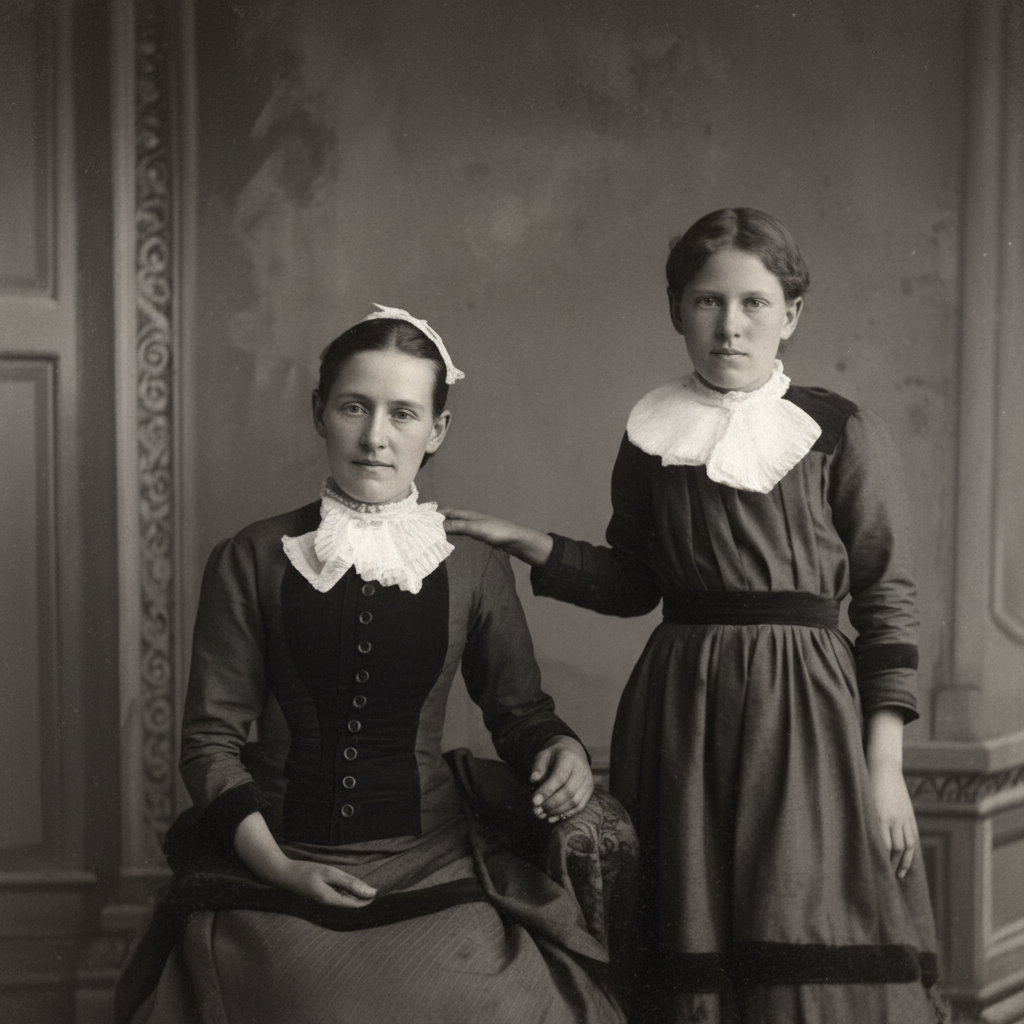
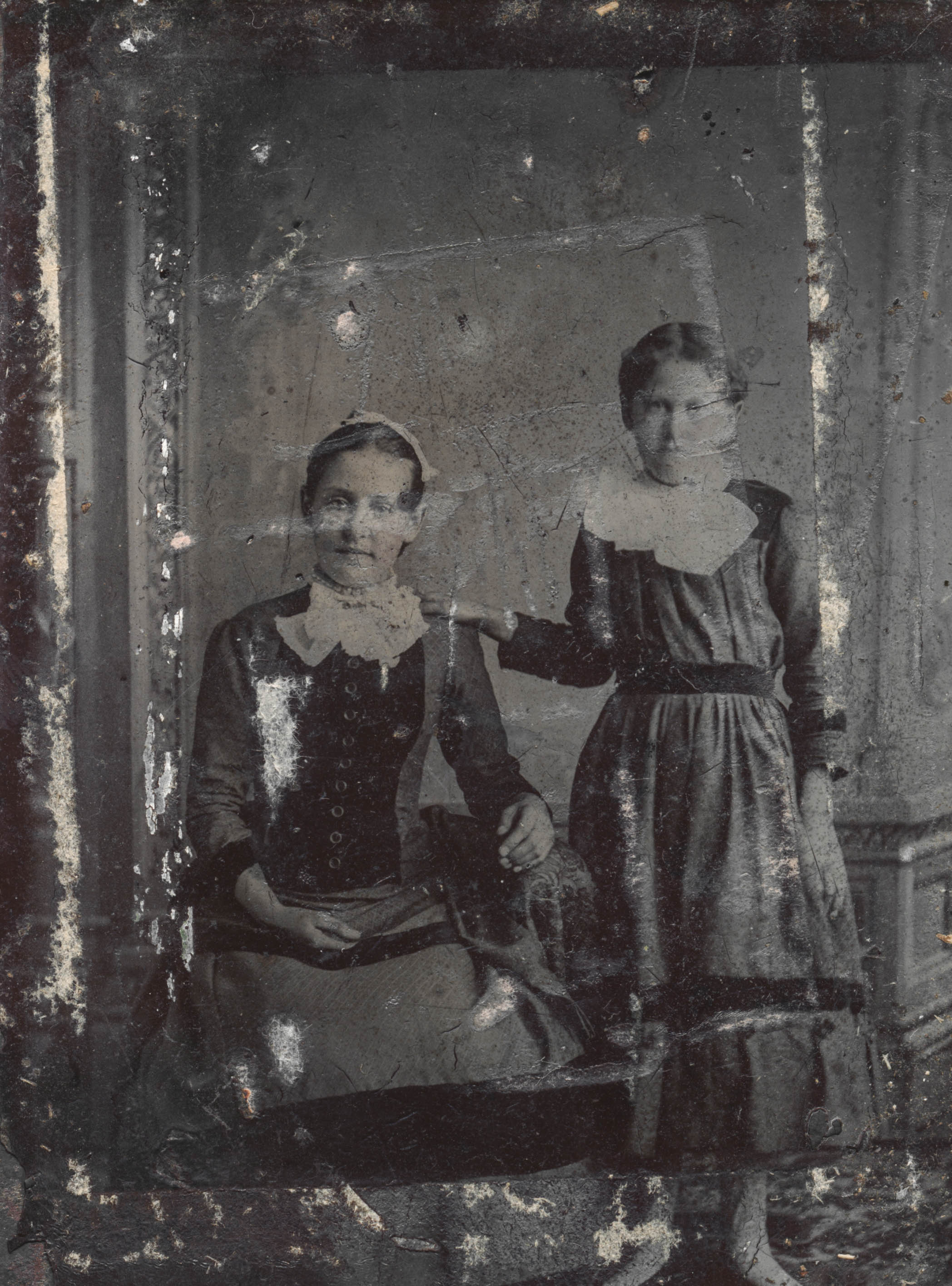
Before
After
Restoration Examples
Real photos from the 1840s to 1900s, restored in one click — fading, scratches, sepia, water stains, and low-resolution scans all fixed.
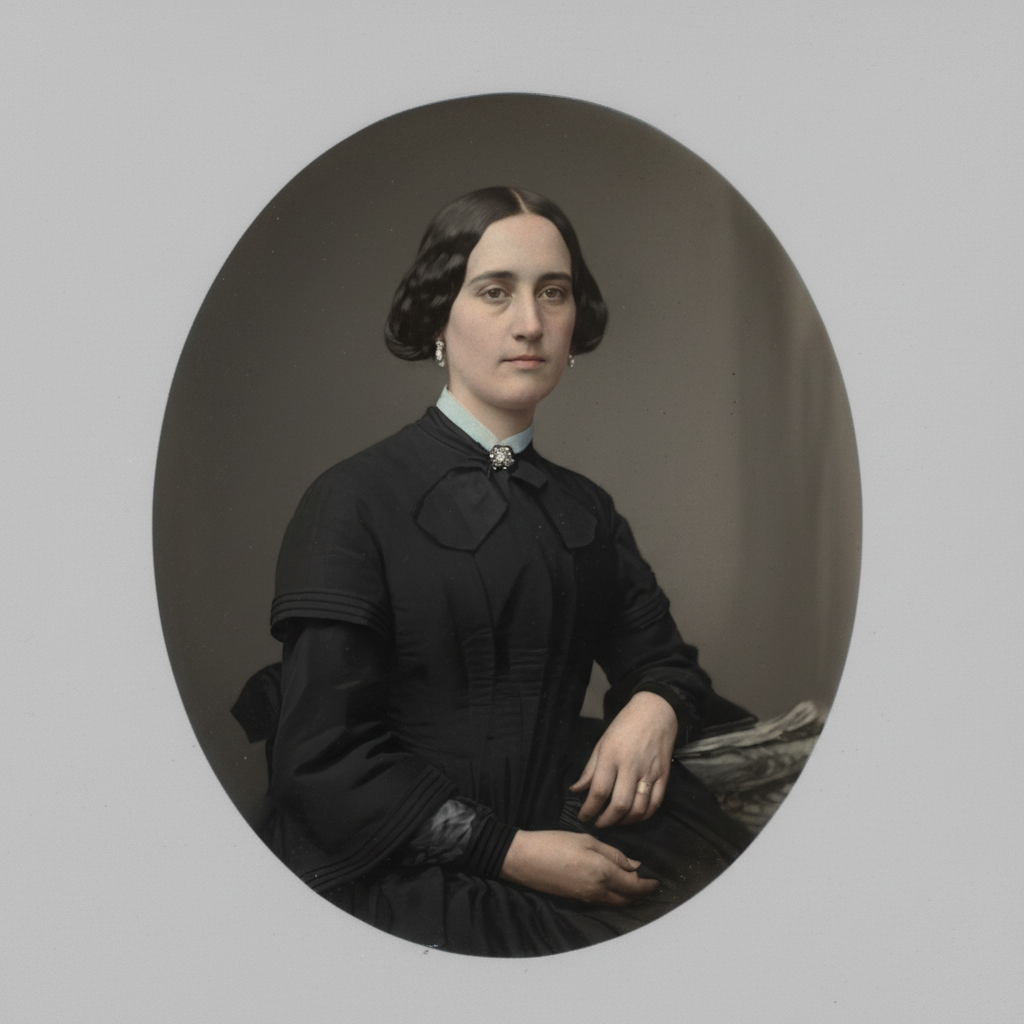
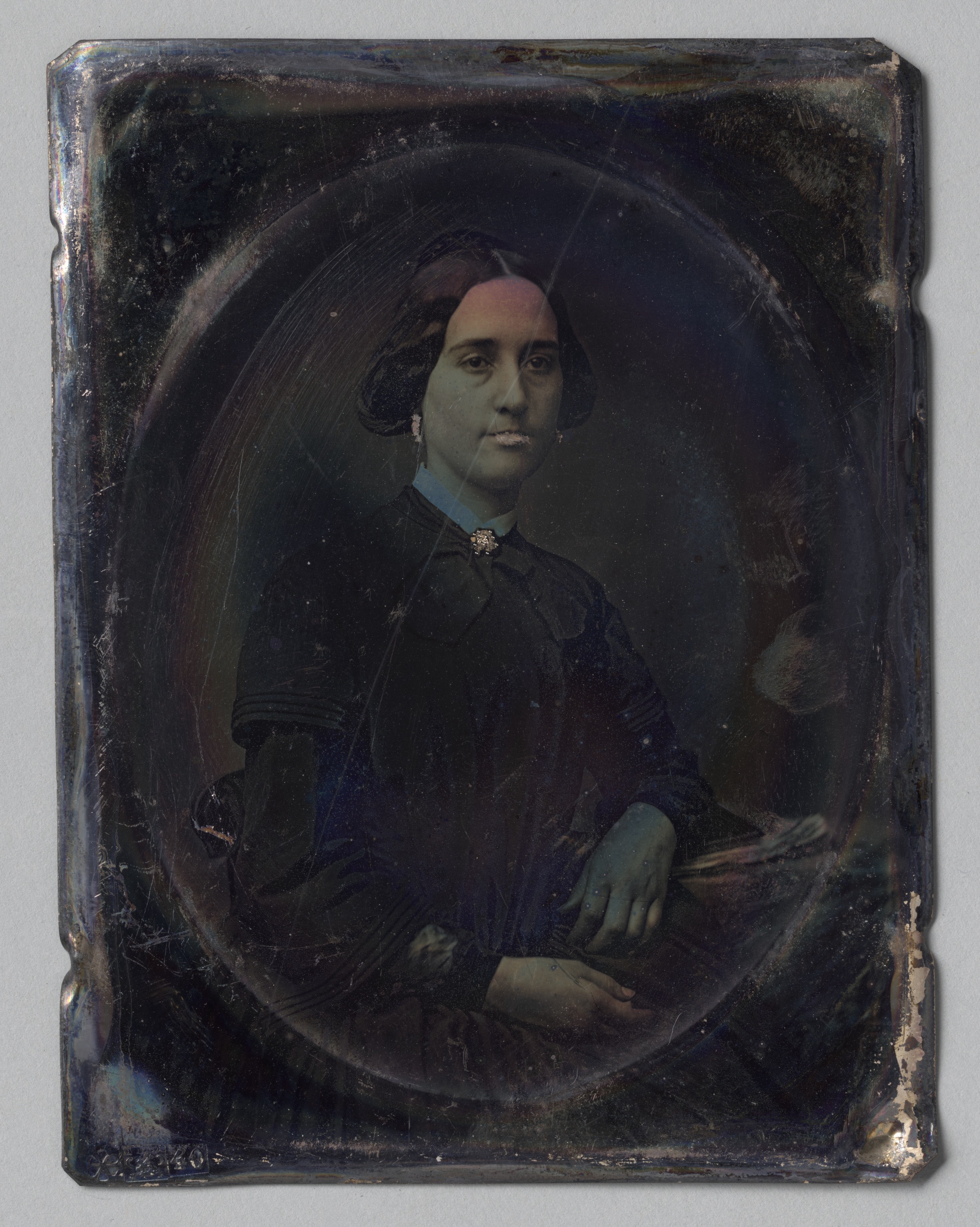
Before
After
Faded
Before
After
Scratched
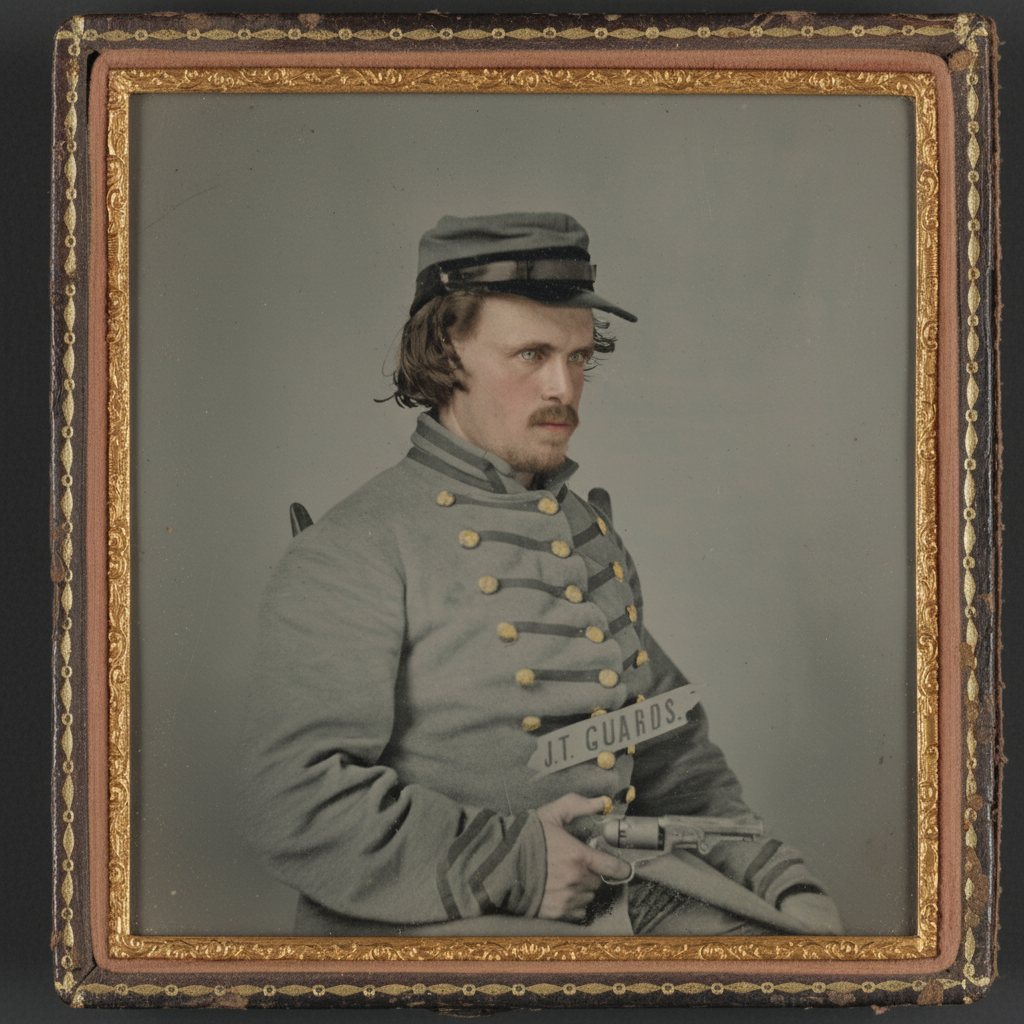
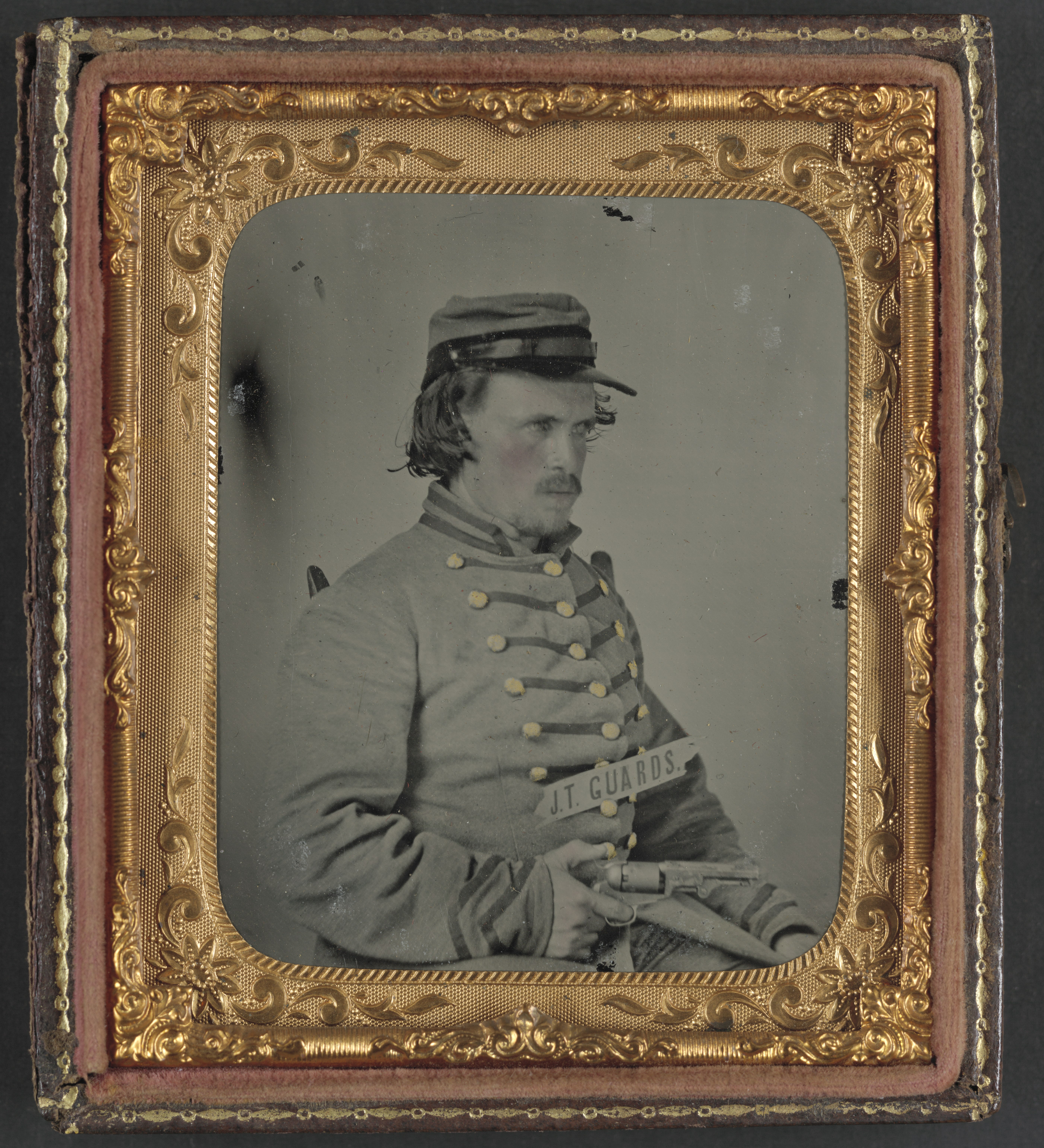
Before
After
Dust & Spots
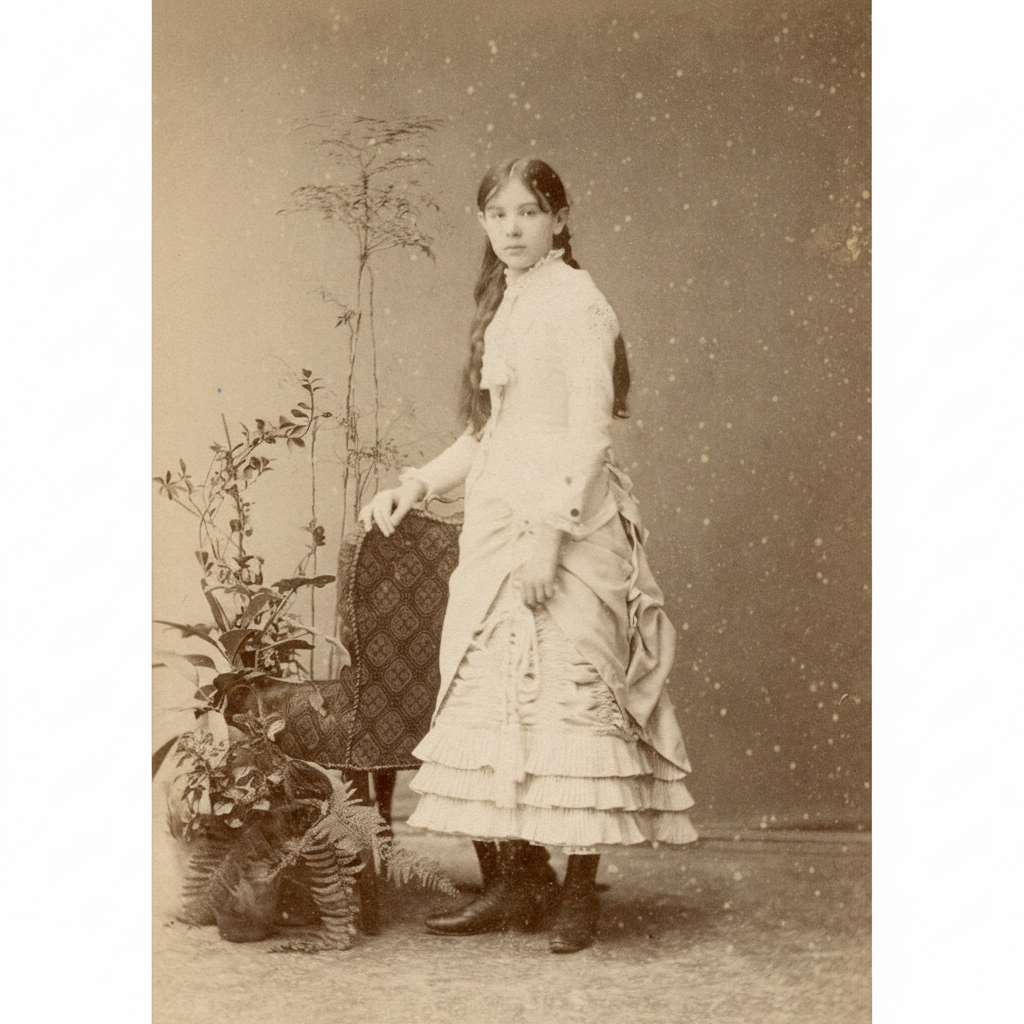
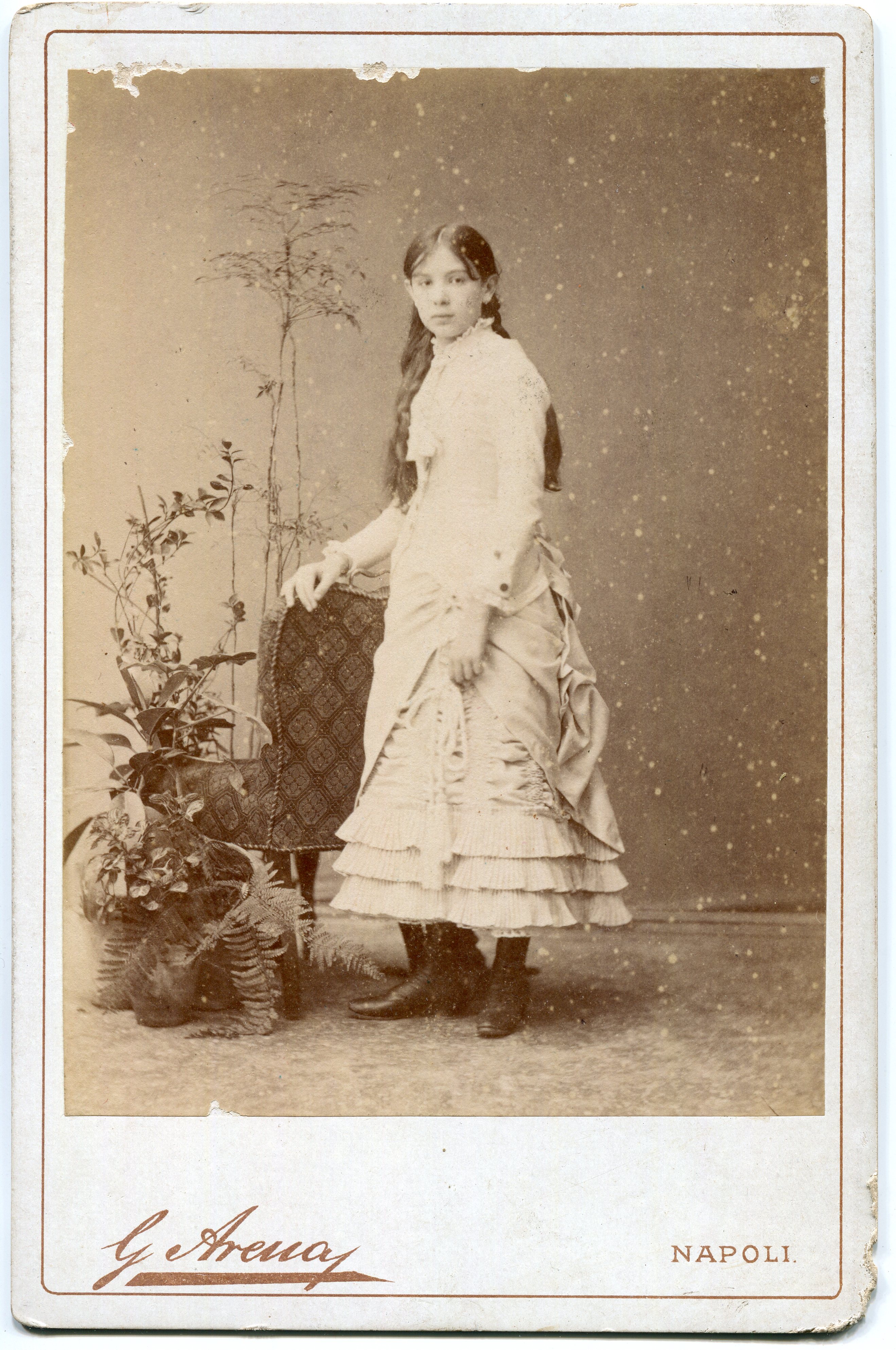
Before
After
Sepia
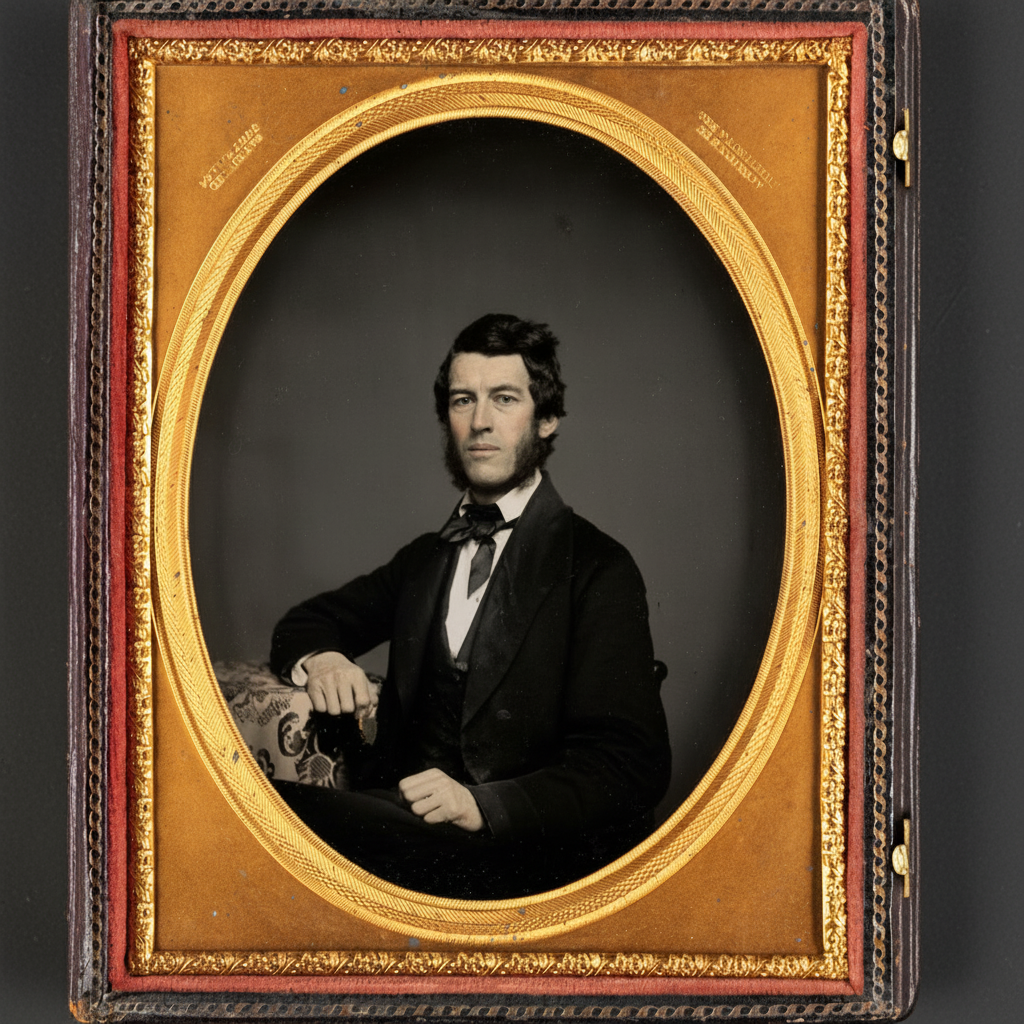
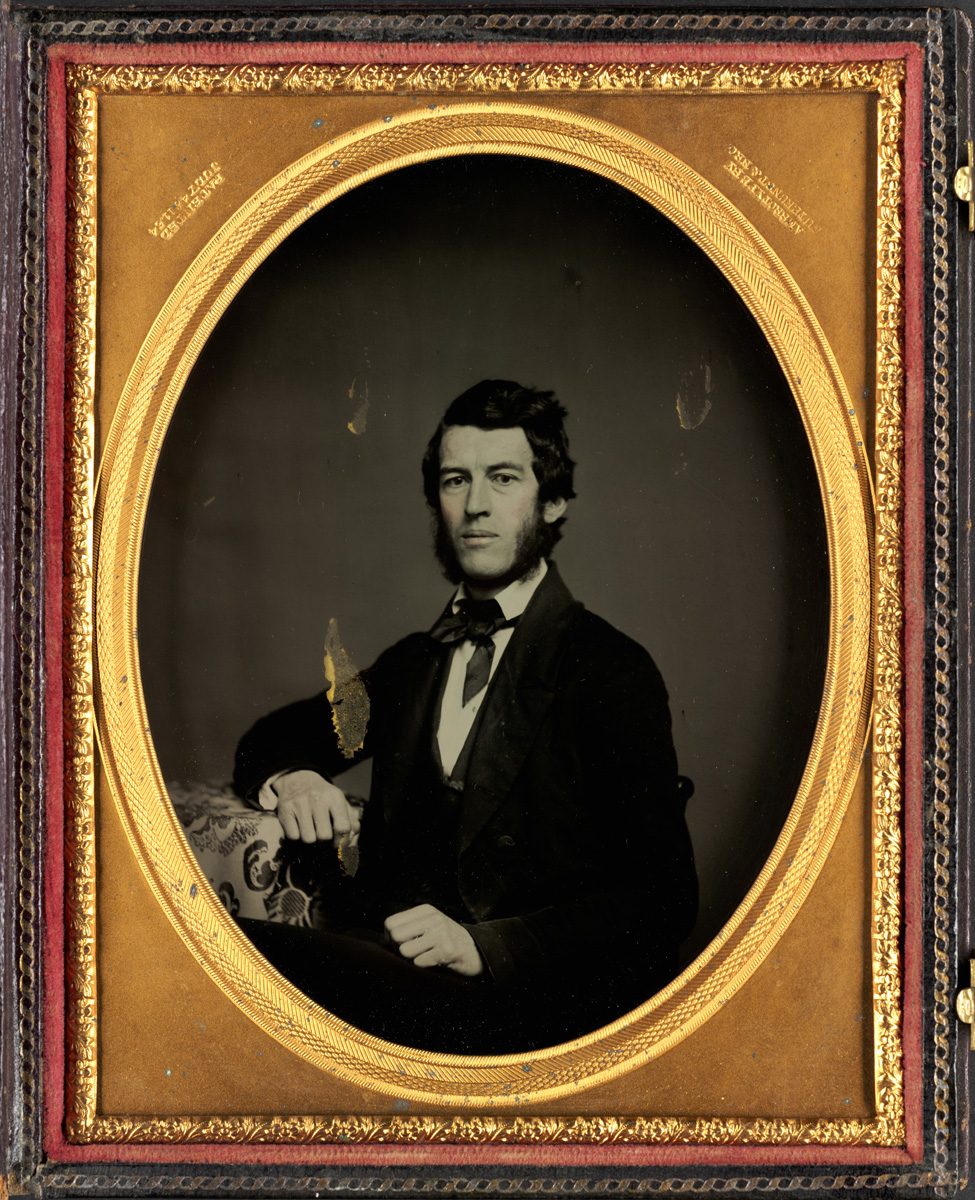
Before
After
Water Stains
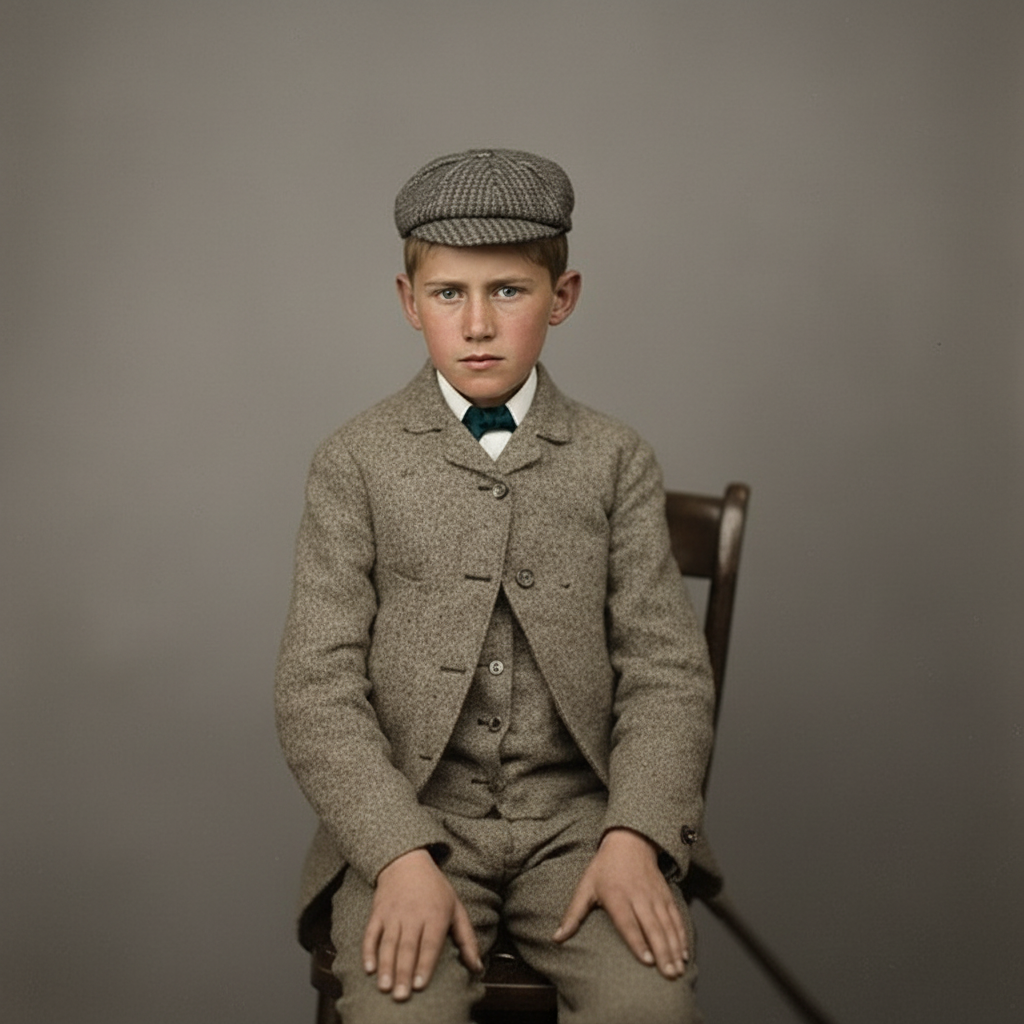
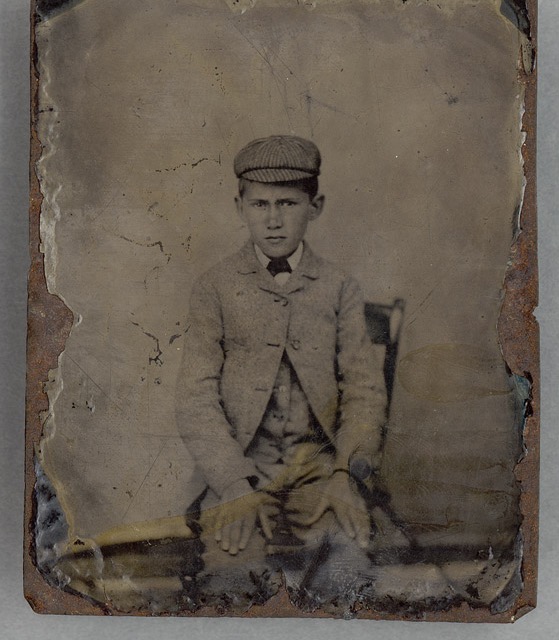
Before
After
Low Resolution
How to Restore Old Photos
1
Upload
Drop in a JPG, PNG, or WEBP.
2
Restore
Click once. Uncheck colorize to keep B&W.
3
Download
Compare with the slider, then save in 20–40 seconds.
Frequently Asked Questions
How do I restore old photos with AI?
Upload your old photo, click Restore, and the AI fixes scratches, tears, blur, fading, and sepia in one pass — then download the restored photo in 20–40 seconds. No editing skills needed.
Can I restore old photos online without installing software?
Yes — everything runs in your browser. Upload your old photo, restore it, and download the result. There's nothing to install on your computer or phone.
Can AI colorize black-and-white photos?
Yes. By default the tool adds natural color to black-and-white or sepia photos while restoring them. Prefer to keep it black-and-white? Just uncheck "Colorize if black & white" before clicking Restore.
Can it fix scratched, torn, or blurry photos?
Yes — it removes scratches, tears, dust, water stains, and creases, sharpens blur, and upscales low-resolution scans, all while preserving the people and composition.
What is photo restoration?
Photo restoration uses AI to fix fading, scratches, blur, sepia, and damage in old photos — while keeping the people and composition unchanged.
How many credits does a restore cost?
Each restore costs 2 credits. Grab the $1.99 Try pack (20 credits) to run your first few restores.
What does Restore actually do?
It runs your photo through a modern image model that fixes fading, scratches, blur, dust, sepia yellowing, low resolution, and damaged regions in a single pass — while preserving identity, framing, and composition. By default it also adds natural color to black-and-white or sepia photos. If you'd rather keep a B&W photo black-and-white, uncheck "Colorize if black & white" before clicking Restore.
Will it change the people or composition in my photo?
No. The prompts explicitly tell the model to preserve identity, framing, and composition, and to never invent new content. The result should look like a clean version of the same moment.
How long does a restore take?
Most restores finish in 20–40 seconds per image.
Can I use the restored photos commercially?
Yes — you own the rights to the images you generate, provided you have the rights to the original photo you uploaded.
Are my uploaded photos private?
Yes. Uploads are stored privately, used only to produce your result, and are never used for model training.